The short answer. To clean up a messy Mac desktop, treat it as a workbench for what you are doing this week, not as storage. Turn on Stacks if you want a calmer view right away, then move older files into a few real folders with names you can search. Change where screenshots are saved, and give the Desktop a short weekly check so the icons do not creep back.
The desktop is a counter, not a cupboard
A desktop fills up for the same reason a kitchen counter does. It is the nearest place to put something down. Screenshots land there. AirDrop files land there. Exports, PDFs you meant to read, a zip from a colleague. None of that is sloppy. It is just what the Mac is set up to do.
The trouble starts when “for later” becomes “forever”. After a few months you are moving windows around to find the file you saved this morning, and opening the Desktop folder in Finder feels like a drawer you would rather not look in.
I see this often when I help people organise their digital life with natrix flow. People are not asking for a prettier wallpaper. They want to find a file without a treasure hunt.
What Stacks do, and what they don’t
Right-click the desktop and choose Use Stacks. Files of the same kind, or the same date, collapse into tidy piles. New files jump into the matching pile. For a first look, this is a relief.
It is also only a view. The files are still on your Desktop. Open the Desktop folder in Finder, or attach a file from another app, and the whole collection is still there. Stacks hide the mess. They do not file it.
You can group stacks by kind, date or tags, and you can use View > Sort By or Clean Up By to line up whatever is left. These are good temporary tools. They are not a system.
If your desktop also shows hard disks, external drives and servers, you can hide those without moving any files: Finder > Settings > General, then uncheck the items under “Show these items on the desktop”.
A real cleanup, in one sitting
Set aside half an hour. Put Stacks off for a moment if they are on, so you can see what you actually have.
- Make two folders, either on the Desktop for now or straight in Documents:
This weekandTo file. - Move anything you are truly using this week into
This week. Be strict. If you have not opened it in a few days, it is not this week’s work. - Switch the Desktop to list view in a Finder window (Go > Desktop, then Command + 2). Use View > Use Groups and Group By > Kind, the same trick that helps with Downloads.
- Work through the groups. Screenshots you do not need can go to the Trash. Photos you want to keep can go to Pictures or a trip folder such as
2026-08-MADEIRA. PDFs and documents you need should be renamed and moved to a proper home, with a date-first name like2026-11-12_Telekom_Invoice.pdf. There is a full guide to naming files with dates. - Anything you are unsure about goes into
To file, not back onto the open desktop. Give that folder a date in the calendar to review it. - When the desktop itself only holds
This week(or nothing at all), moveThis weekto Documents or your main work folder if you would rather the desktop be completely clear.
Resist the urge to scoop everything into a single folder called Old Desktop and call it done. That folder becomes a second junk drawer, only harder to see. A little sorting now is what makes the files findable later.
Also watch for aliases, which look like files but are only shortcuts. If you delete an alias, the original file is still where it was. If you are not sure, Control-click and choose Get Info, or look for the small arrow on the icon.
Will this make your Mac faster?
Sometimes people tidy the desktop because they have heard it will speed up the Mac. An honest answer: a few dozen icons will not make a noticeable difference. Hundreds or thousands of files on the Desktop can make Finder slower to draw the desktop, especially if some of them are large previews. That is a real, but usually small, effect.
If your Mac feels slow, also look at storage (System Settings > General > Storage), at login items, and at whatever else is running. A clean desktop is still worth doing. Do it so you can find your work, not because it is a magic speed fix.
If you use iCloud Drive with Desktop and Documents turned on, the files you move are still in iCloud. That is fine. You are changing where they live, not taking them off the Mac in a special way.
Stop new files landing there
The desktop will fill again if screenshots and casual saves keep arriving.
- To change where screenshots go, press Command + Shift + 5, click Options, and choose a folder such as Documents or a dedicated
Screenshotsfolder. You can also pick Clipboard if you usually paste the capture and do not need a file. - In apps that export or save by default to the Desktop, switch the destination once, when you notice it.
- If you like a completely clear desktop, make it a habit to put new work in
This weekor the right project folder, not in the open space.
Then add a small weekly check, the same as with Downloads. A five-minute pass, with a Calendar reminder, is enough once the big pile is gone.
A faster way, if you want one
You can do this cleanup entirely in Finder, and you should, if you want to understand the new structure.
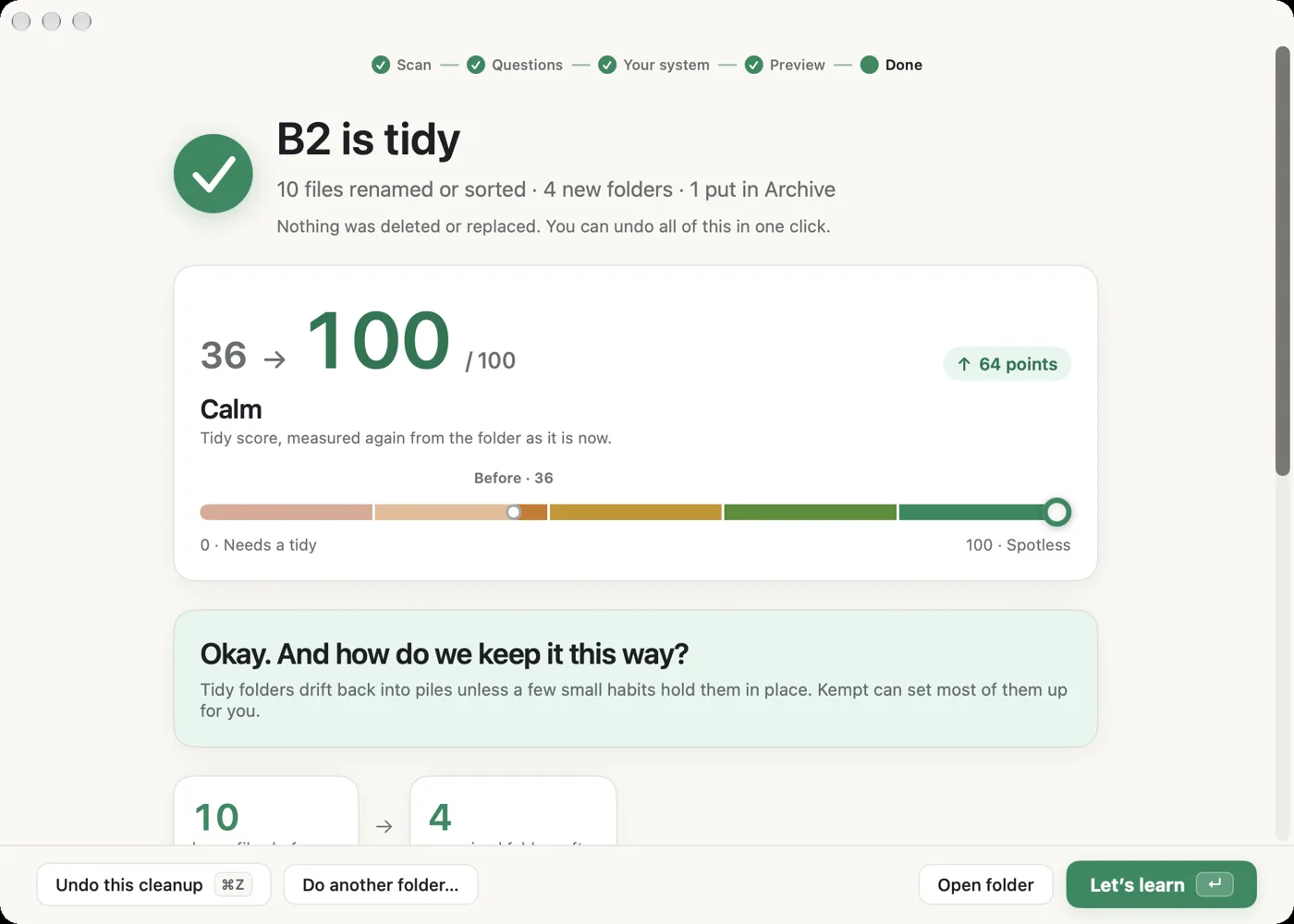
If you would like help with the large pile, I built Arrayo for it. It scans Desktop, Downloads or any folder, gives you a mess score, and asks a few questions. Then it suggests a system that can follow your projects and clients, your life areas, the date, or the file type, and it shows a preview before anything moves. It never deletes, and you can undo.
To keep the desktop tidy afterwards, it can watch a folder for new files, send a gentle weekly reminder and a monthly check, and it comes with Apple Shortcuts actions.
Arrayo is in beta, for Macs on macOS 14 or later. The free version covers the scan, the questions and one folder, which is enough for the Desktop. Ask for beta access if you want to try it.
Try this on your own folder
The steps above work on their own. If you would like a calmer way to do the first tidy, the free Arrayo beta can scan a folder, ask a few questions, and tidy one folder. You see a preview first. It never deletes, and you can always undo.