The short answer. Treat Downloads as a temporary inbox, not a filing cabinet. Open it in list view, group files by Kind, then work through one group at a time. Keep what you need and move it to a proper folder, with a name you will understand later. Trash installers and zip files you have already used. Then give the folder a small weekly check, so the pile does not grow back.
Why Downloads turns into a junk drawer
If I asked to see your Downloads folder, you would probably hesitate. Most people do. It starts as a holding place, and then months go by. Installers sit next to tax PDFs. A photo from a friend sits next to a zip you already opened. Names like Document (1).pdf start to pile up, and finding anything means scrolling and guessing.
I see this a lot when I help people organise their digital life with natrix flow. The folder is not a character flaw. Your browser puts everything there, and nothing in macOS asks you to finish the job. Treat Downloads as an inbox. Things arrive, you deal with them, and they leave.
A 20-minute cleanup in Finder
You do not need an app for this. Twenty focused minutes is enough for a first pass.
- Open Downloads. The quickest way is Option + Command + L, or Finder > Go > Downloads.
- Switch to list view with Command + 2, so you can see names, dates and sizes.
- Choose View > Use Groups, then View > Group By > Kind. Similar files now sit together, which makes decisions much faster than scrolling a mixed list.
- Sort by Date Added inside the groups if you like, so the oldest leftovers rise to the top.
Now work through the groups. Do not try to make a perfect system in this first pass. The goal is to empty the loose pile.
Disk images and installers. These are the .dmg and .pkg files leftover from apps you already installed. If the app is in your Applications folder, you can usually trash the installer. If you think you might need the installer again, move it to a folder such as Documents/Installers. Do not leave it in Downloads.
Zip files. If the unzipped folder or file is sitting next to the .zip, and you have opened it, the zip is often safe to trash. If you are not sure, open it once, then decide.
PDFs and documents. This is the important group. Do not leave invoices, contracts and tickets in Downloads. Move the ones you need to keep into a real home, such as a client folder, a paperwork folder, or Documents. Before you move a file, give it a name you can find, like 2026-11-12_Telekom_Invoice.pdf. A short, date-first name will help you later far more than a neat pile of files still called Document.pdf. I wrote a separate guide to the best way to name files with dates.
Images and screenshots. Keepers can go to Pictures, or to a trip or project folder. A folder name like 2026-08-MADEIRA is easier to scan than IMG_4582.HEIC sitting in Downloads for a year.
Everything else. Videos, random exports, bank CSVs, things you meant to look at once. If you have not opened a file in months and you can get it again, you probably do not need it. If you are unsure, make a folder called Downloads/Review and put the maybe-pile there. Look at it next week. Do not let “maybe” block the rest of the cleanup.
Then empty the Trash, but only after a last glance.
Do not just sort by file type and stop there
A common tip is to make folders inside Downloads called PDFs, Images, Archives and so on, then drop each file into the matching one. That is better than one giant list, and it is a fine first structure if you are overwhelmed.
It has a limit, though. A folder of 200 PDFs is still a mess if they are named Document (1).pdf and you cannot tell an invoice from a menu. File type tells you what a file is, not what it is for.
Once the pile is under control, pick a structure that matches how you look for things:
- By project or client, if your work comes in pieces with names.
- By life area, such as Housing, Health or Finance, if you think in parts of life.
- By date, if you mostly remember when something happened.
- By file type, if you really do hunt by kind, for example a folder of raw photos.
You can mix these. Many people keep work by client, and personal paperwork by life area, and still use dates in the file names. The name is what you search. The folder is what you browse.
Clean up the leftover names as you go
Downloads is full of names the computer made, not names you chose. Copies end up as Invoice (1).pdf. Those leftovers make Spotlight less useful, because you will never type “(1)” when you are in a hurry.
As you move a file, take three seconds to rename it. Click the name, or select it and press Return. Use a date, a source, and a short description. If you have two copies of the same file, keep the one you want and put the other aside. You can compare sizes and dates in list view before you decide. If renaming everything feels like too much, start with the keepers: anything you would be upset to lose.
How to keep Downloads from filling up again
A single cleanup feels great, then the browser goes back to work. The habit is the second half of the job. Once a week, open Downloads, sort by Date Added, and deal with whatever arrived since last time. If the folder is already under control, this takes five minutes. I like a reminder in Calendar, so it does not depend on my memory.
If you want the Mac to help, Shortcuts on recent macOS versions can run when a file is added to Downloads and move some types into folders you choose. Older Macs can use an Automator Folder Action. Build this only after you know where things should go, and ignore temporary files such as .download or .crdownload. A rule that silently files everything can hide a document you meant to see.
I built this part into Arrayo as well, because I wanted something gentler than a hidden rule. It can watch a folder for new files, send a weekly tidy reminder and a monthly check, and it includes Apple Shortcuts actions. You still see what will happen before files move.
Should you change where your browser saves files?
Usually, no. One Downloads folder is easier to check than five different save locations. If you already file things as they arrive, “Ask where to save each file” in Safari or Chrome can work. For most people, it just adds a prompt and the pile still grows, only in more places.
Keep the inbox. Empty it on a schedule.
A faster way, if you want one
You can do all of this by hand, and I hope the steps above are enough on their own.
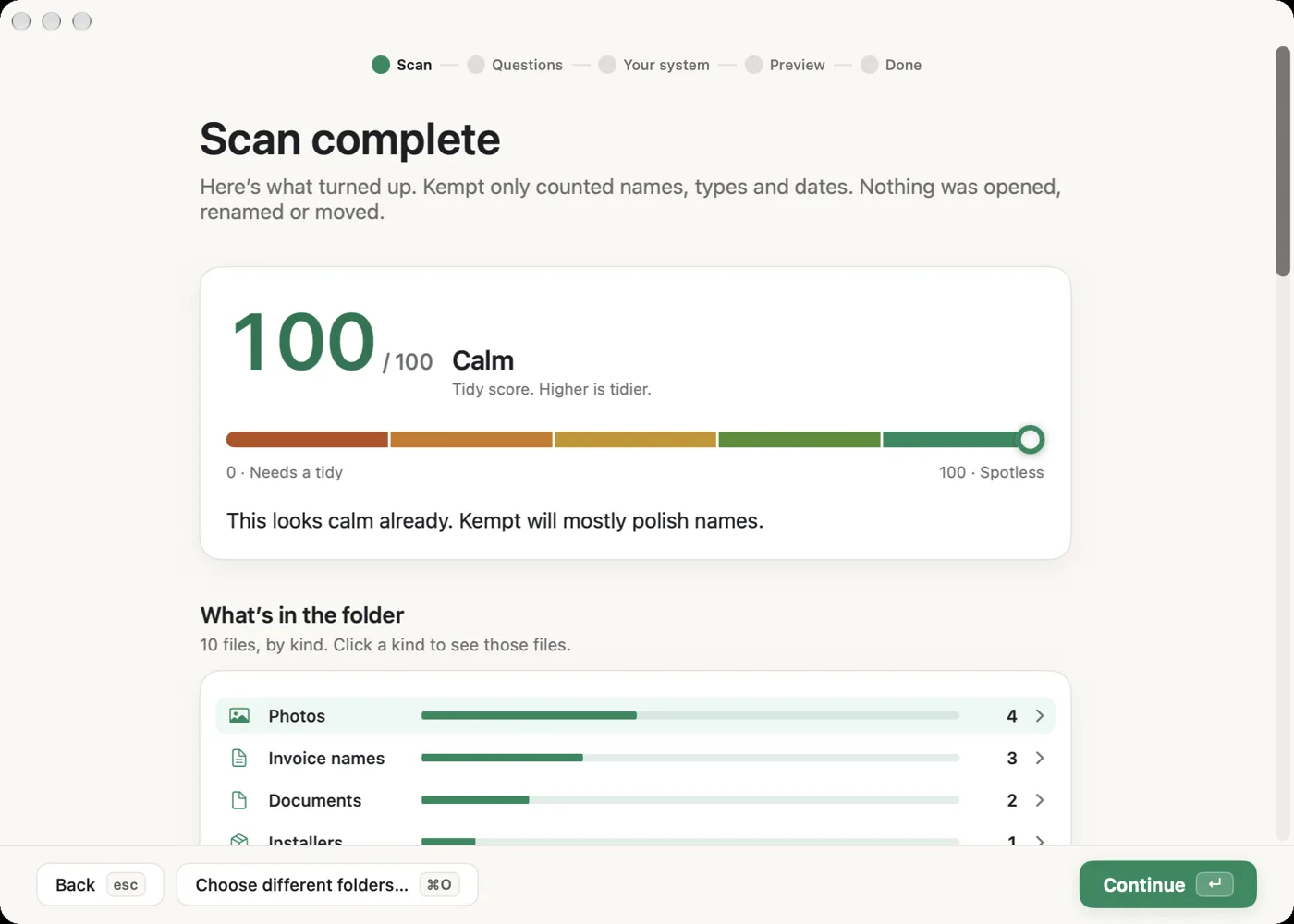
If you would rather have help, I built Arrayo for this. It is a Mac app, still in beta, that scans Downloads, Desktop or any folder and gives you a mess score. It asks a few friendly questions, then suggests a folder system and clearer names. You see a preview that explains why each file goes where, before anything changes. It never deletes a file, and you can undo the whole tidy.
The free version covers the scan, the questions and one folder, which is enough to get Downloads under control. If you want to try it, you can ask for beta access.
If your Desktop is in the same state, I wrote a companion guide on how to clean up a messy Mac desktop.
Try this on your own folder
The steps above work on their own. If you would like a calmer way to do the first tidy, the free Arrayo beta can scan a folder, ask a few questions, and tidy one folder. You see a preview first. It never deletes, and you can always undo.